In Customer Portal, you can manage devices that are paired with Collector Mobile Client (CMC).
For each device running Collector Mobile Client, you need a valid license.
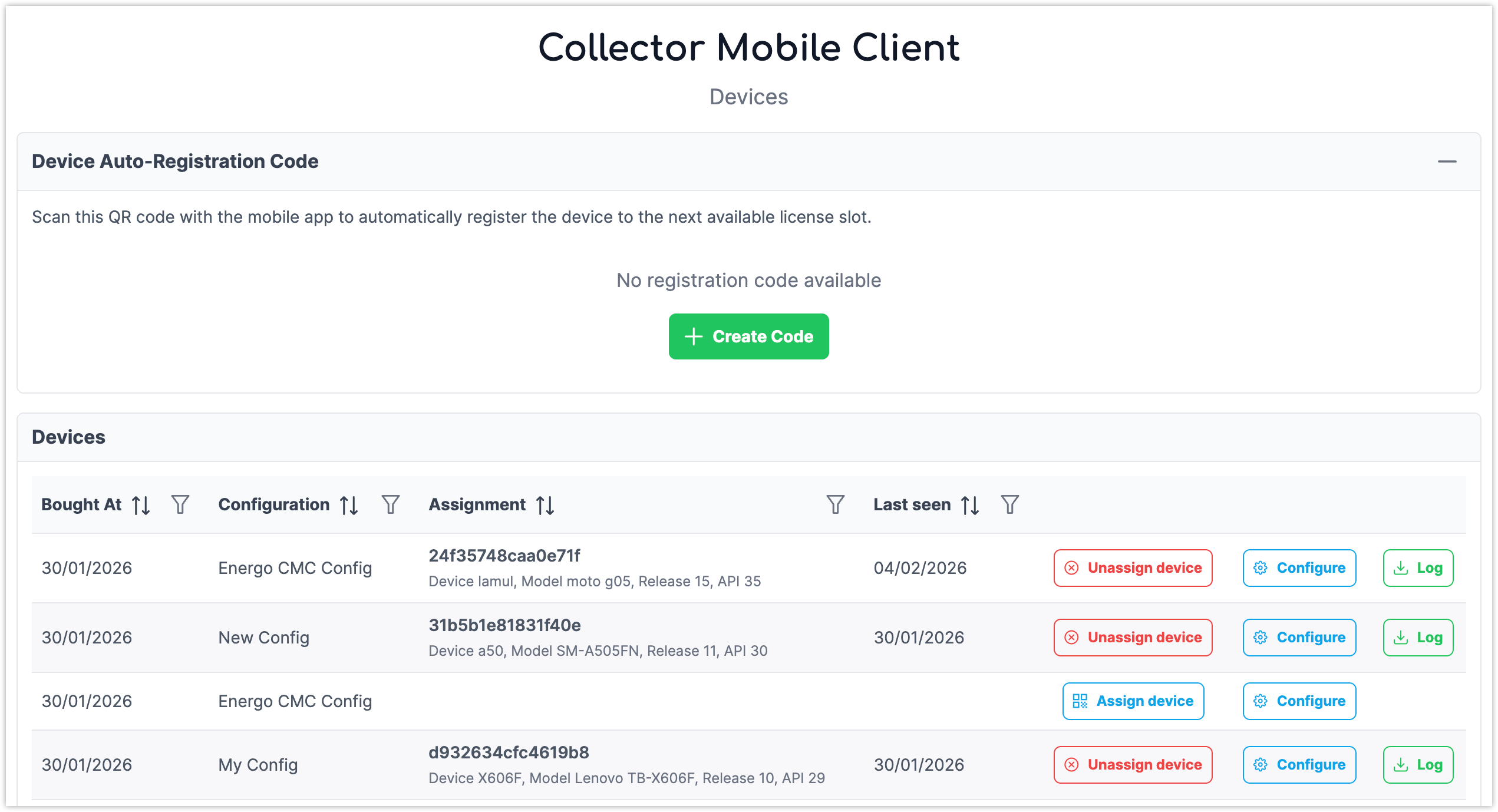
You can view all your licensed devices in Customer Portal under Products → Collector Mobile Client → Devices.
Pair Devices with Your Account
When you install Collector Mobile Client on your devices, you must pair it with your organization in Customer Portal.
To pair devices, follow these steps:
-
Log in to the Customer Portal and go to Products → Collector Mobile Client → Devices.
-
On your device, install and open the Collector Mobile Client application.
You will be prompted to scan a code. -
Scan one of the QR codes available in the Devices section in Customer Portal.
Customer Portal provides two types of QR codes for pairing devices:
-
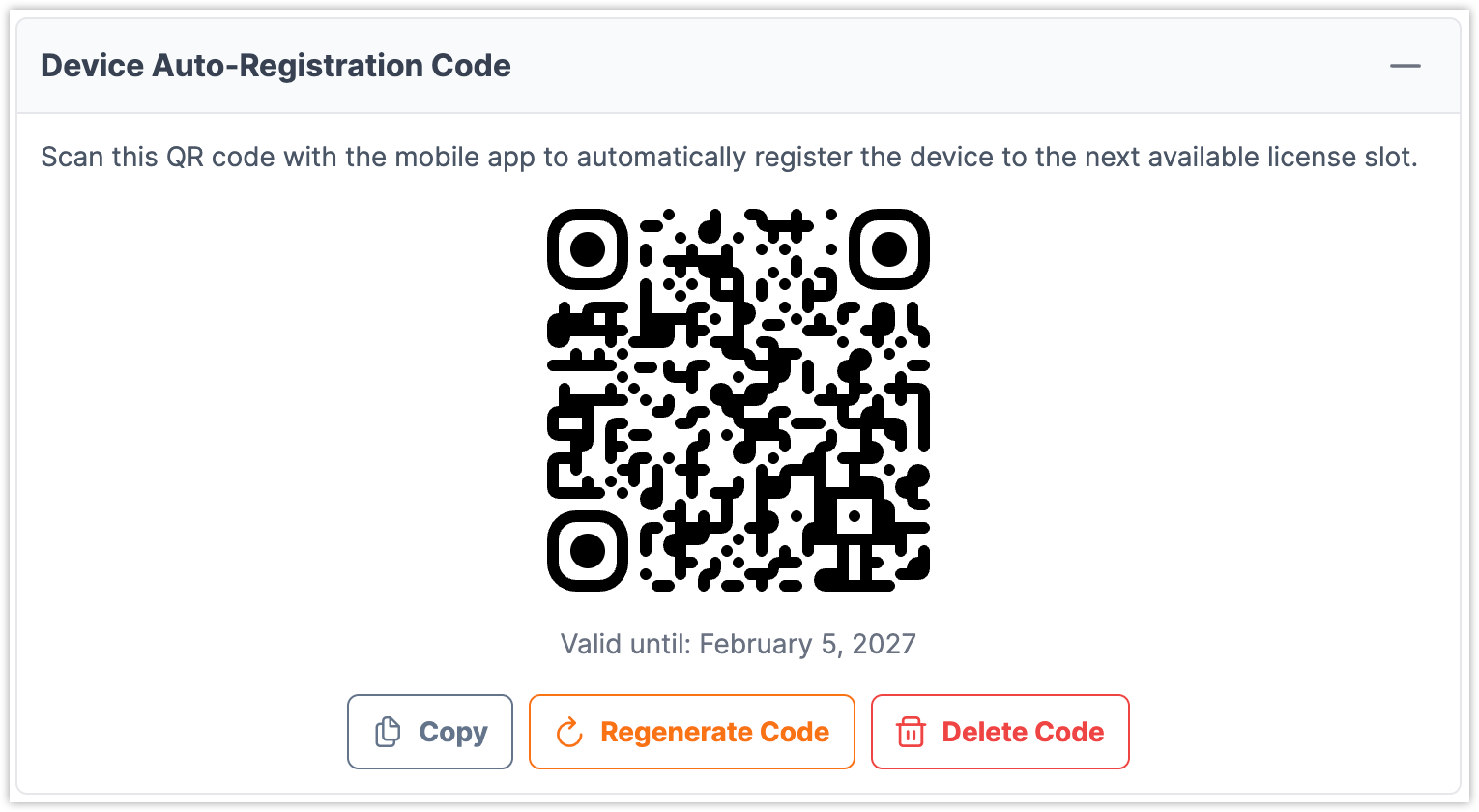
A reusable QR code with long-term validation that assigns an available free license.
To create the code, click Create Code in the Devices section.
You can use this code multiple times within its validation period to pair multiple devices with available licenses. Keep the QR code secure - anyone with access to it can use it to assign licenses.
-
A single-use QR code with short-term validation that is unique for individual licences.
For security reasons, the QR code can be used only once and expires after approximately one minute. To display this QR code, click Assign device in the corresponding license row.

If you have no available licenses for additional devices, you must purchase a new license. For details, see Licenses .
Assign Configuration to Devices
Each device running Collector Mobile Client must be assigned configuration through Customer Portal.
When you add new devices (buy new licenses), they are automatically assigned the most recently created configuration.
To change the assigned configuration, follow these steps:
-
Log in to Customer Portal.
-
Go to Products → Collector Mobile Client → Devices.
-
Click Configure for the device that you want to update.
-
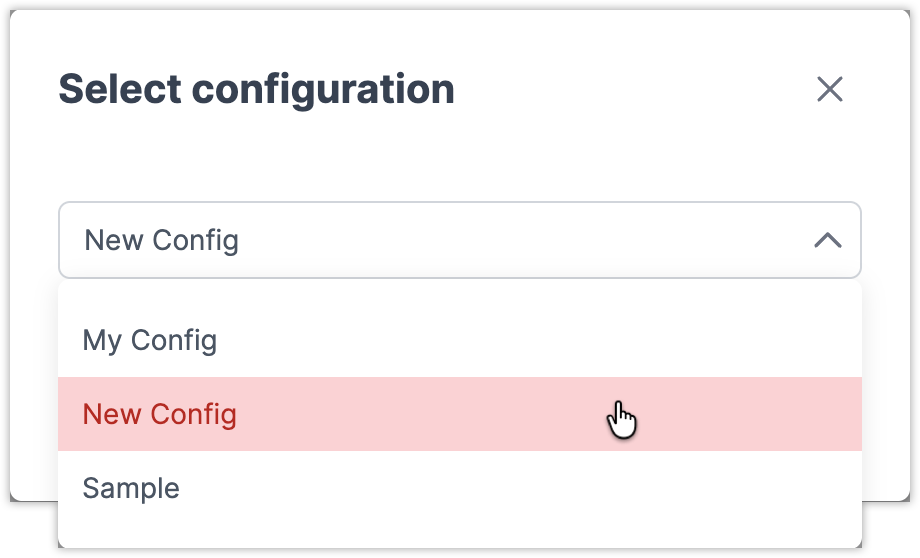
From the drop-down menu, select the configuration and click Save.