
Organizations in cybros labs Customer Portal support multiple users.
Each user is assigned specific roles that define their permissions and the level of access within the organization.
Invite Users
Only tenant owners and admins can manage users. For details, see Role Permission below.
To invite users to your organization, follow these steps:
-
Log in to the Customer Portal.
-
Switch to the My Organization tab.
-
Click the Invite user icon.

-
Fill in the email address and set a user role for the invited user.
-
Click Send invitation.
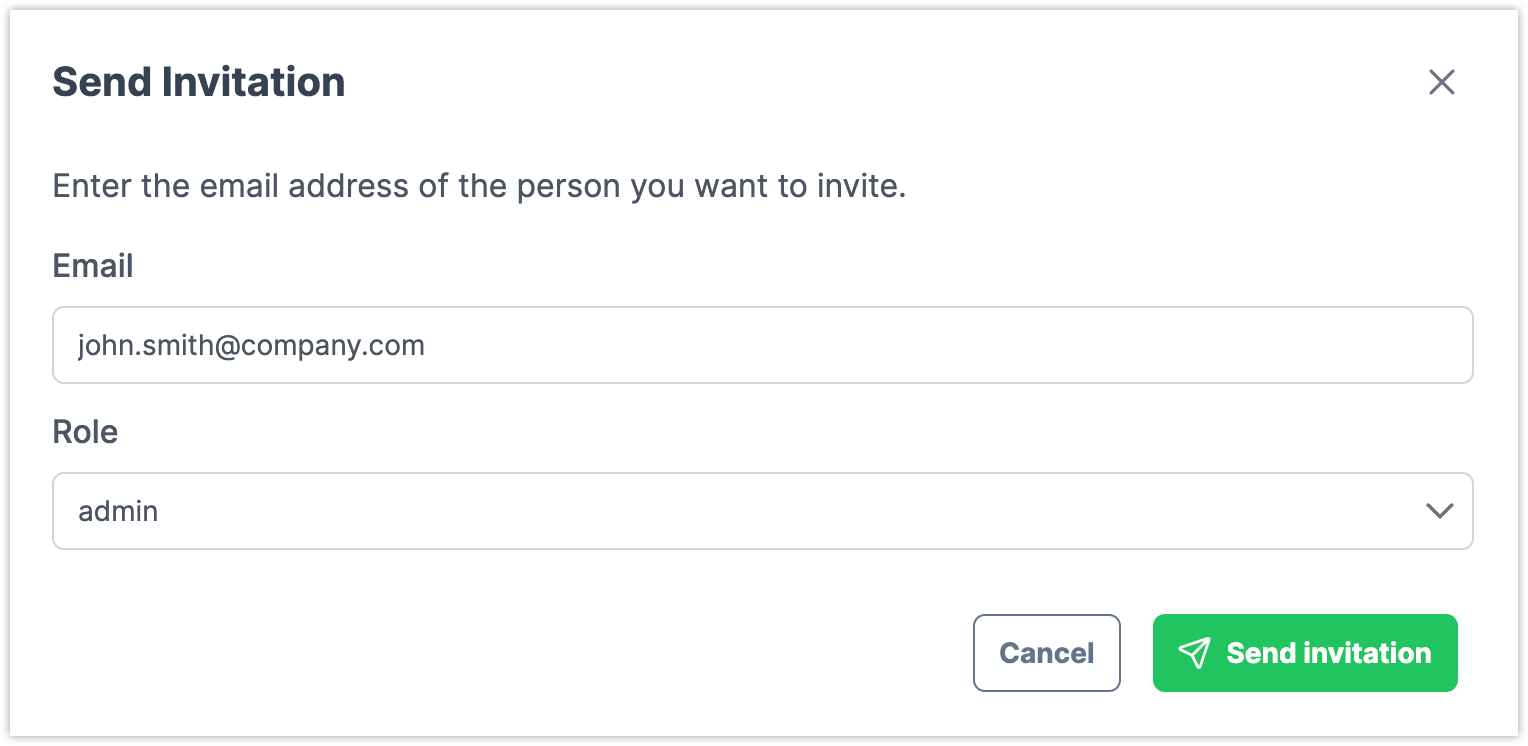
An invitation link will be sent to the email address. Users then must register via the link to access your organization in Customer Portal.
The invitation link expires in 24 hours.
User Roles
Users in Customer Portal can have one or more roles assigned. These roles are:
-
tenant owner -
admin -
data viewer
Each role grants access to specific sections in Customer Portal and allows specific actions.
Role Permissions
|
Permission |
Tenant owner |
Admin |
Data viewer |
|---|---|---|---|
|
Change billing info |
✅ |
❌ |
❌ |
|
Change organization name |
✅ |
❌ |
❌ |
|
Invite users to organization |
❌ |
✅ |
❌ |
|
Assign user roles |
✅ 1) |
✅ 2) |
❌ |
|
Create and update configuration |
❌ |
✅ |
❌ |
|
Assign and configure devices |
❌ |
✅ |
❌ |
|
View data |
❌ |
❌ |
✅ |
|
1) 2) |
|||
Assign Roles
You assign a role to users when you invite them to the customer portal. You can add additional roles or remove them later.
Users that create organizations are automatically assigned all three user roles.
To change user roles, follow these steps:
-
Log in to the Customer Portal.
-
Switch to the My Organization tab.
-
Locate the user whose roles you want to update.
-
To add a new role, click on the green plus sign

-
To remove a role, click on the red minus sign

Users cannot change their own roles marked with 